Call for Tenders (CFT)
The Call for Tenders (CFT) section allows you to manage the entire lifecycle of your tenders, from creation to submission and follow-up.
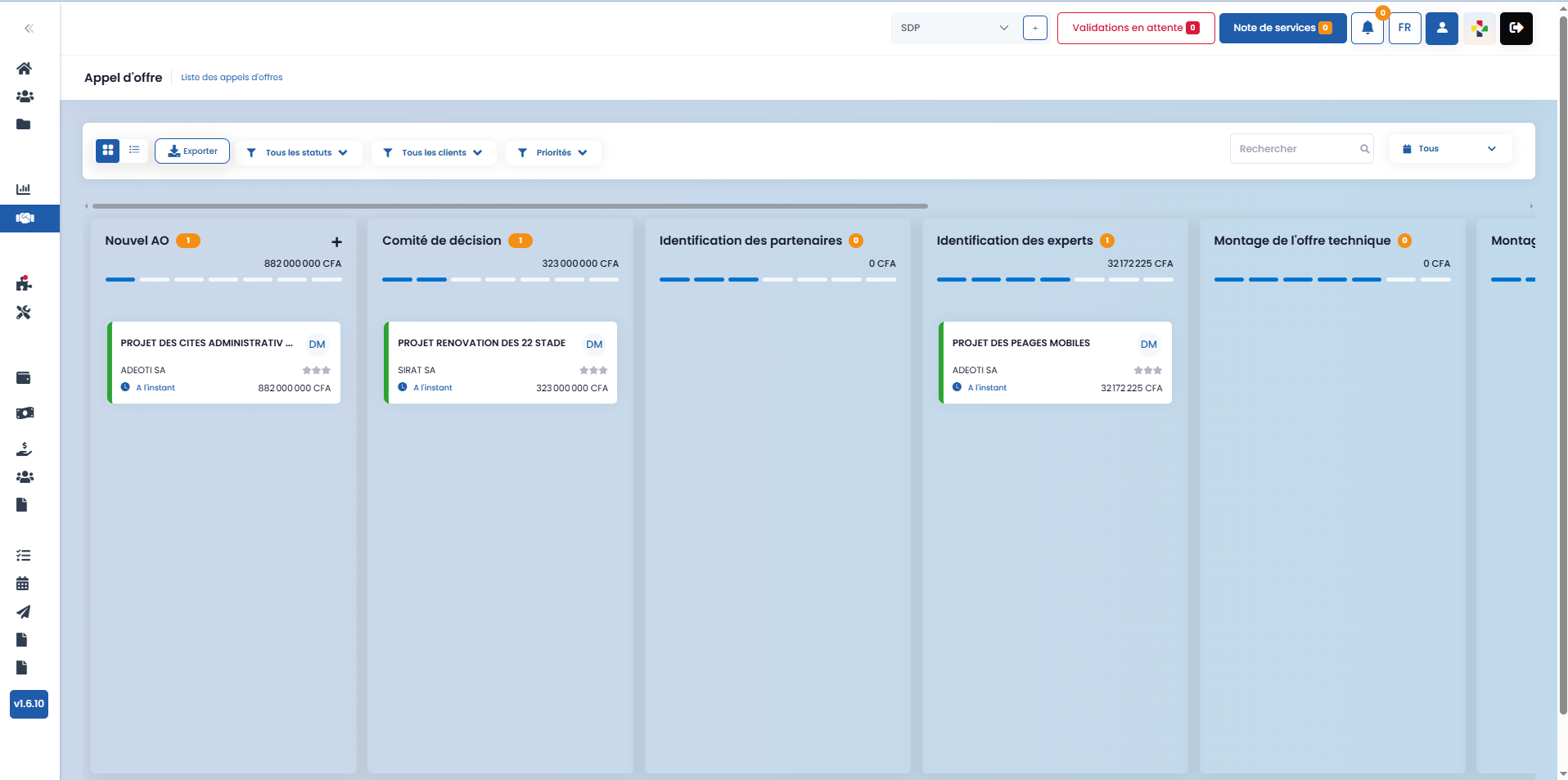
Overview and Navigation Tools
From this interface, you have a feature bar that allows you to:
- display tenders in list view or grid view

- export a tender

- search for a tender using the search bar

Several filters are also available to refine the display:
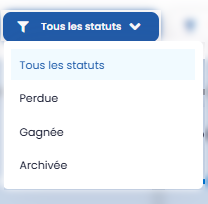
- Filter by status: lost, won, archived
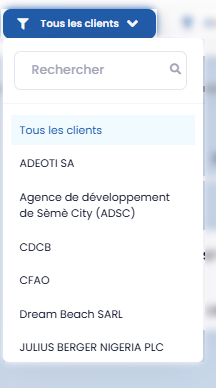
- Filter by client
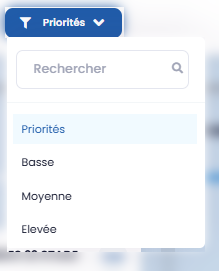
- Filter by priority: low, medium, high
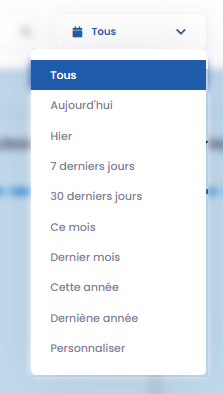
- Filter by period: all, today, yesterday, last 7 days, last 30 days, etc.
These tools allow you to quickly find the relevant tenders according to your work context.
Creating a Tender (Grid View)
In grid view, a dedicated card for creating a new tender is available.
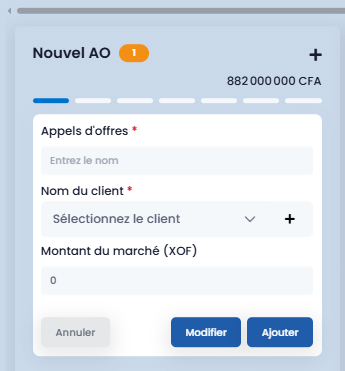
- The "+" button, located on the New Tender card, allows you to add a new tender.
- When clicked, a form appears directly within the card, allowing you to:
- enter the name of the tender
- select the associated client (or create a new one via the "+" button if no client is registered yet)
- indicate the contract amount
Once the information is completed, click "Add" to create the tender.
Accessing and Managing a Tender
By clicking on a newly created tender, you can access all its detailed information.
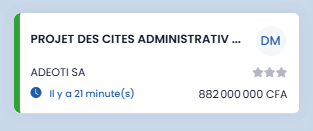
Each tender is structured into several stages, including validation, verification, and submission phases.
-
General Information In this section, you can:
- associate an existing colleague with the tender via the "Associate a colleague" option
- create and add a new colleague using the "New colleague" option
-
Documents This section brings together all documents related to the tender, providing centralized access to the files required for processing.
Tender Decision
The Tender Decision section allows you to enter all key information related to the tender.
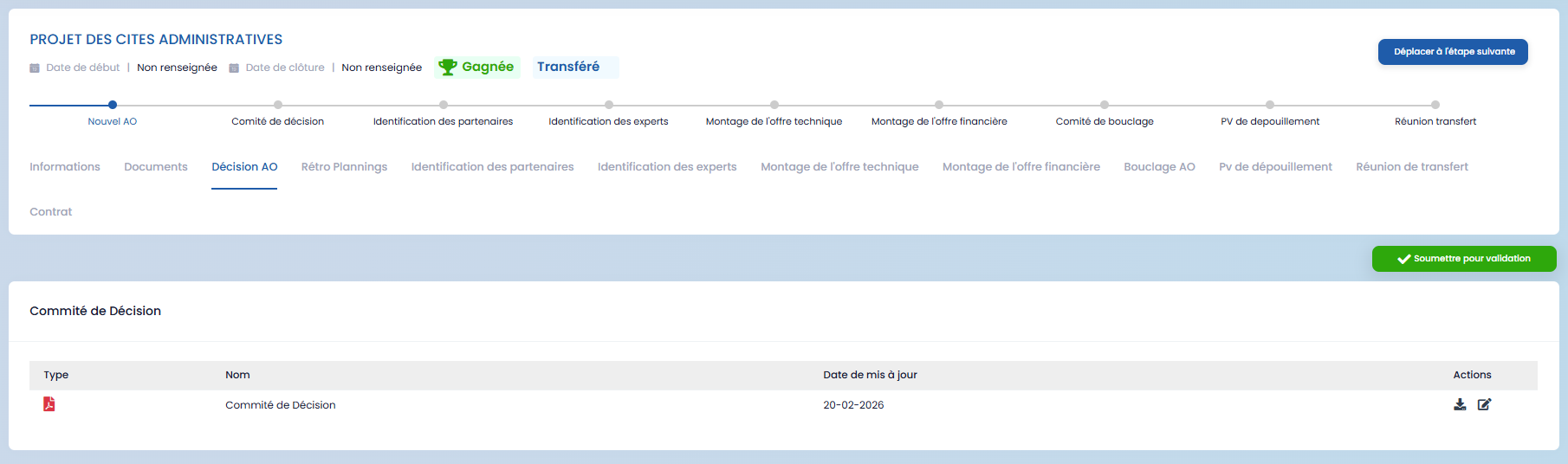
By clicking the "Edit" icon in the actions area, you can complete the following information:
- contracting authority
- mission characteristics
- mission duration
- selection criteria
- required profile
- country and city
- submission date
- document storage location
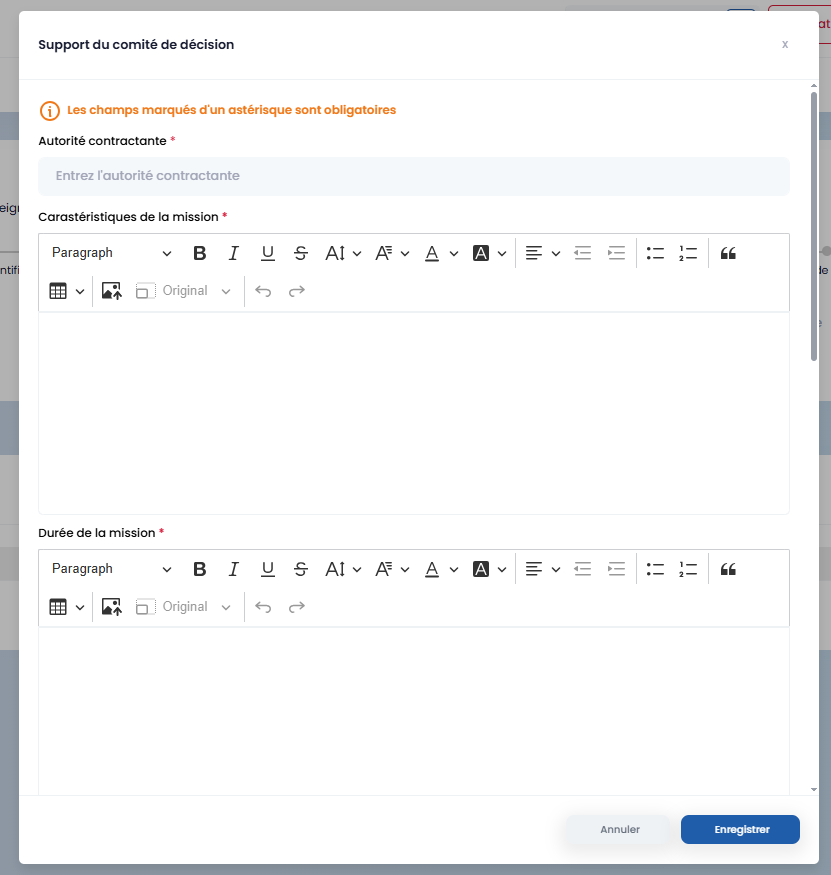
After saving, you have the option to:
- preview the document via the "View" button
- download the document via the "Download" button
- submit the file for validation using the green "Submit for validation" button
Retroplanning
The Retroplanning section allows you to plan the various stages related to the tender.
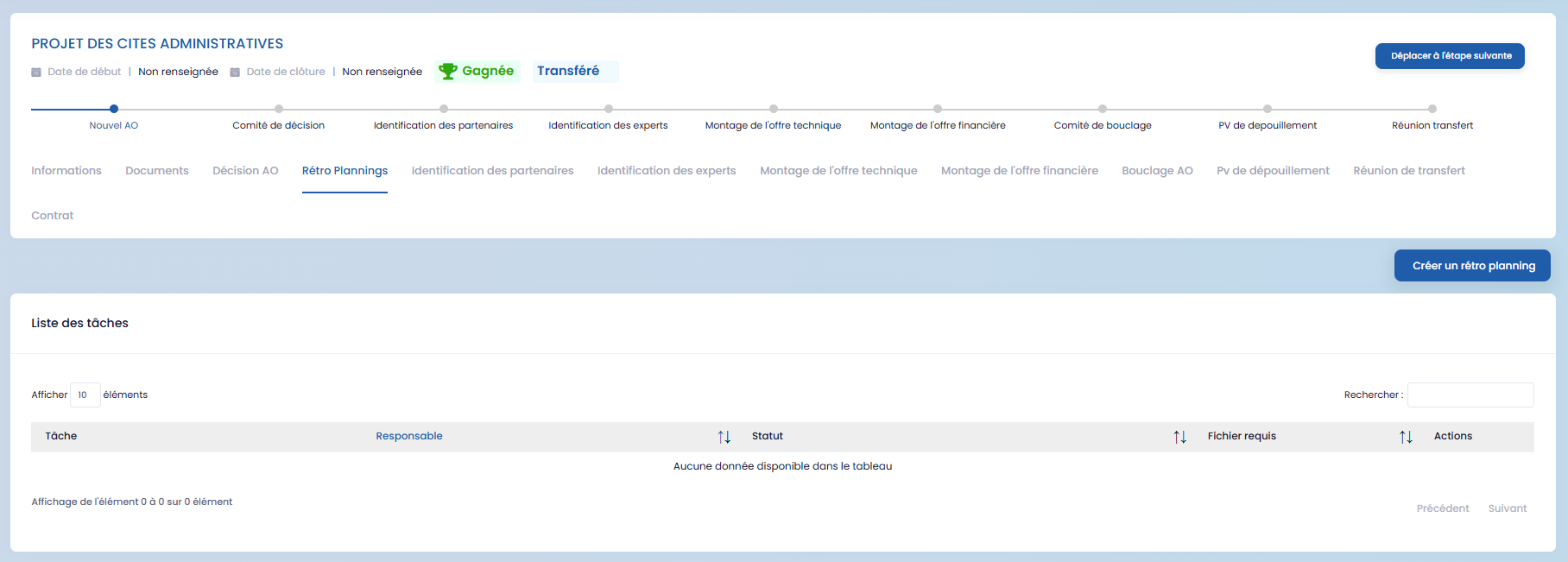
To create a retroplanning, click the "Create a retroplanning" button, then fill in the requested information in the form that appears:

Partner Identification
This section allows you to identify and associate partners involved in the tender.
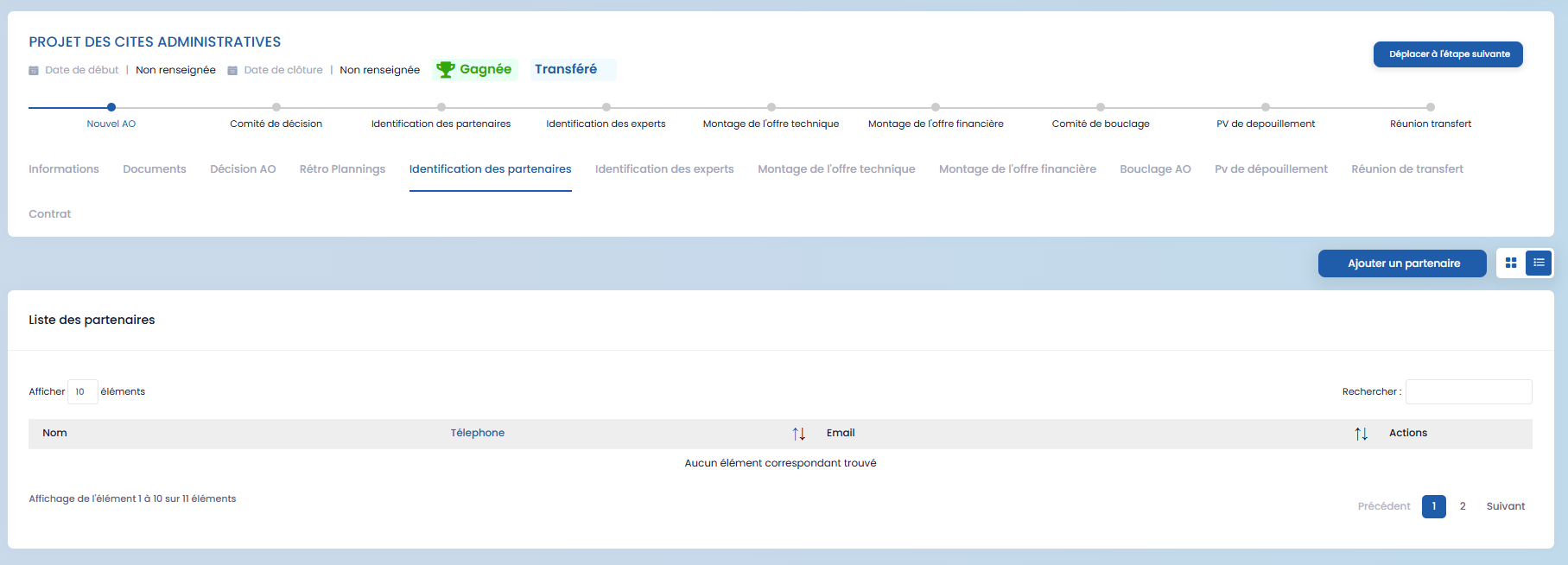
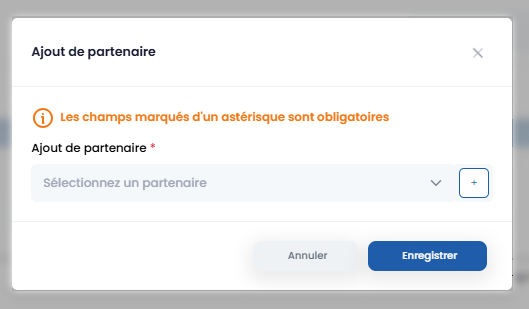
- Click "Add a partner" to select an existing partner.

- If no partner is registered yet, the "+" button allows you to create a new one directly.
You can display partners in list view or grid view. Once the partner list is finalized, click the green "Submit list" button to validate this step.
Expert Identification
The Expert Identification section is used to define the profiles required to respond to the tender.
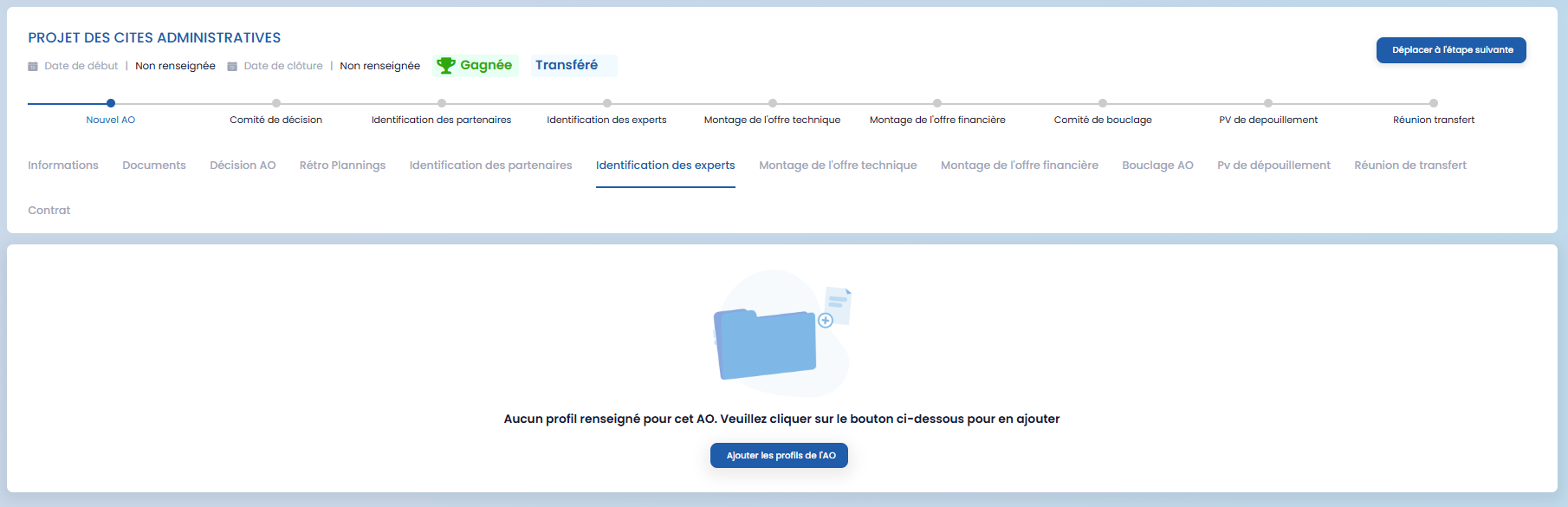
- If no profile is defined yet, click "Add Tender Profiles"
- A form appears, allowing you to:
- select existing profiles
- or create new profiles via the "+" button
- define the criteria associated with each profile
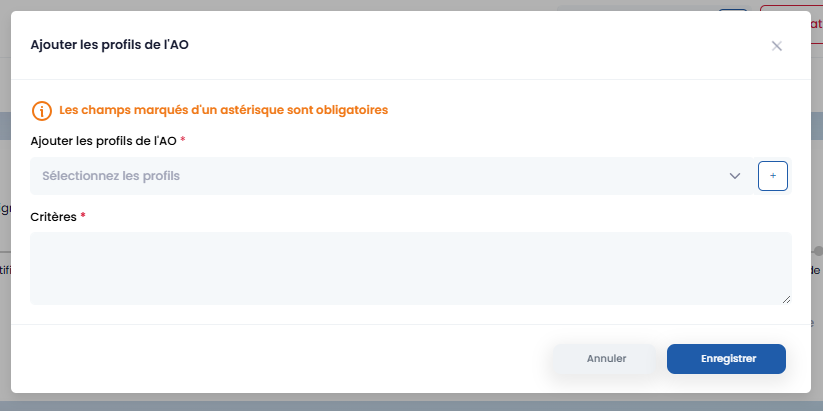
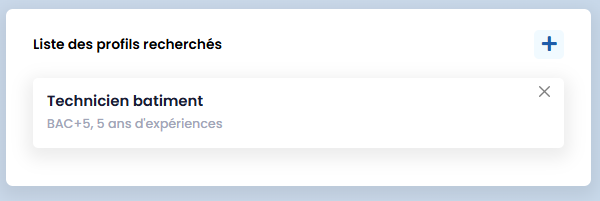
After saving, a summary view of the profiles is displayed.
In the List of requested profiles sub-section, the "+" button allows you to add new profiles.
The List of selected experts sub-section then allows you to select experts from your CV database or create new ones based on the defined profiles.

Bid Preparation and Finalization
Technical Bid Assembly
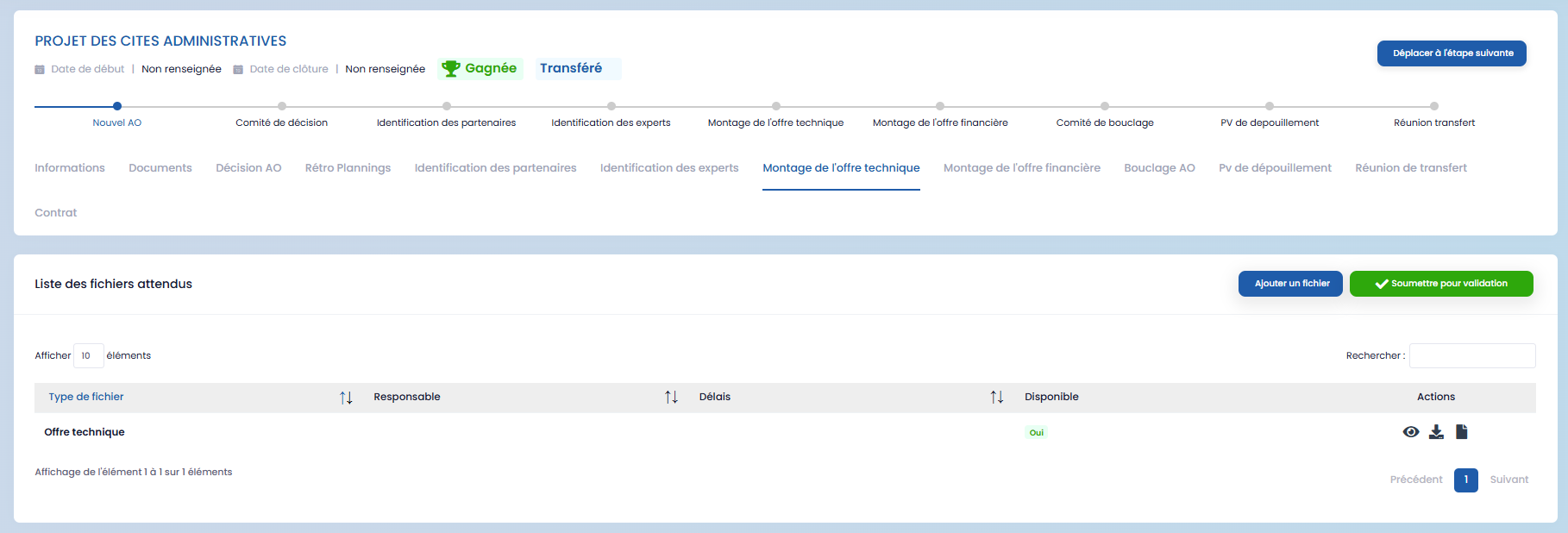
The Technical Bid Assembly section allows you to add and manage documents related to your technical offer.
Using the "Add a file" button, you can upload the corresponding document for your offer.

After clicking this button, a form appears to allow you to enter the necessary information and add the file.
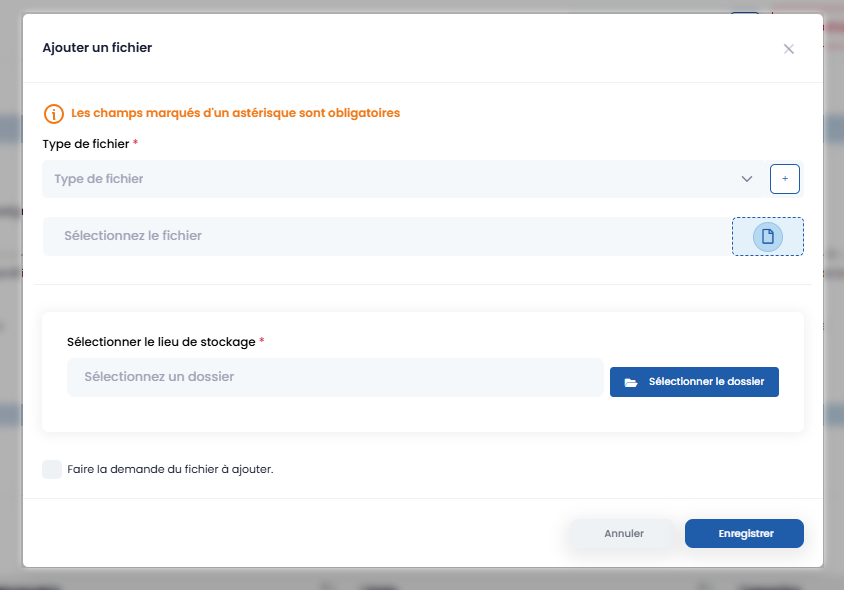
Once the document is added, several actions are possible:
- visualize the document via the "View" option
- download the document
- modify the document if necessary

When the document is ready, you can submit it for validation using the "Submit for validation" button.

Financial Bid Assembly
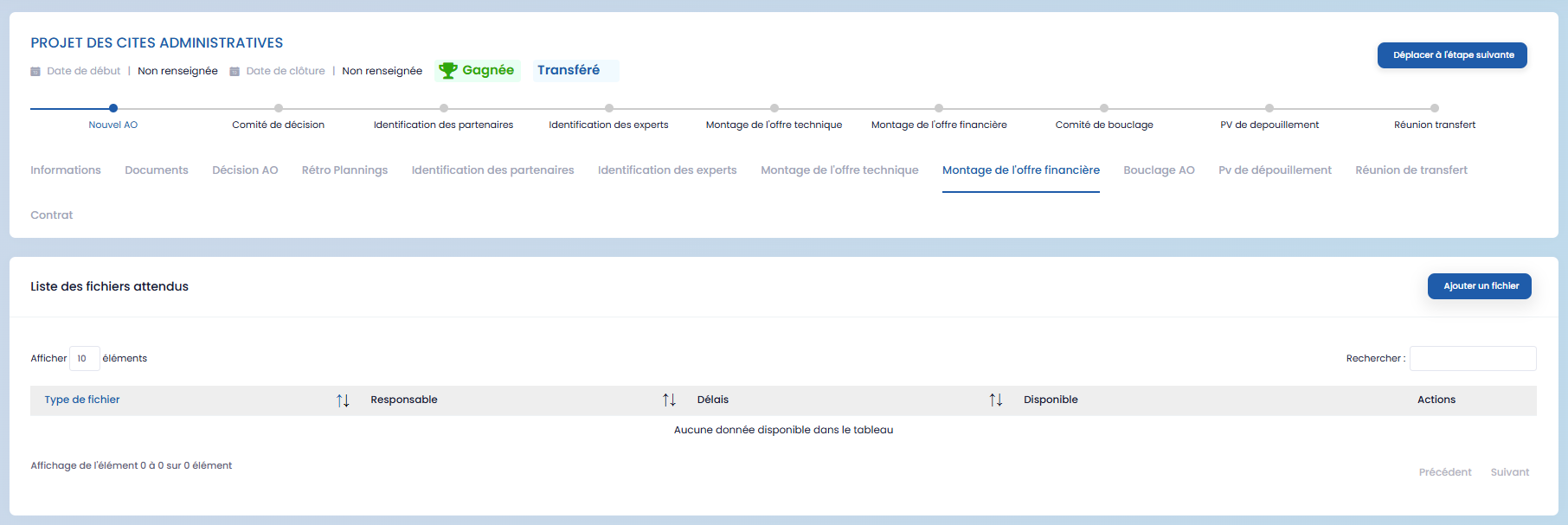
The Financial Bid Assembly section follows the same process as the technical offer.
It allows you to add, view, edit, and download financial documents related to the tender, then submit them for validation once finalized.
Tender Closing
The Tender Closing section is dedicated to the final verification of all documents submitted during the previous steps.

At this stage, you can:
- view all tender documents
- make modifications if necessary

- submit the entire file for final validation
This step ensures that the tender is complete, compliant, and ready to be closed.
Tender Opening Minutes (PV)
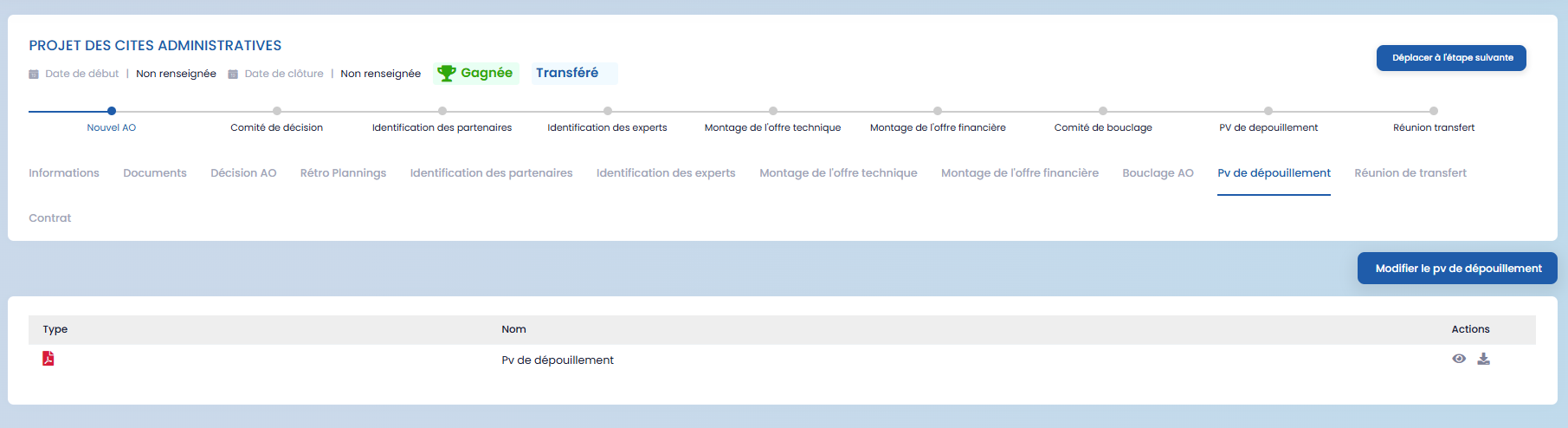
The Tender Opening Minutes section allows you to add the bid opening report associated with the tender.
After adding the document, you can:
- mark the tender as won using the "Mark as won" button
- or as lost via the "Mark as lost" button
This action sets the final status of the tender.
Advanced Tender Management
Overall, the Tenders section also provides advanced management features, including:
- archiving tenders
- viewing the history of actions performed on each tender
- the ability to move a tender from one stage to another using the "Move to next step" button, depending on its progress.
These features ensure full traceability and structured monitoring of each tender, from creation to closing.