Internal Purchase Requisitions
Expense Reports
The Expense Reports section is used to manage expenses incurred by employees.
You have access to:
-
a search bar,
-
a filter by date,
-
a filter by status (draft, pending approval, rejected, pending validation, validated, partially paid).
A Statistics section displays indicators such as:

-
balance due (remaining to be paid),
-
reports pending approval,
-
reports pending validation,
-
etc.
Creating an Expense Report
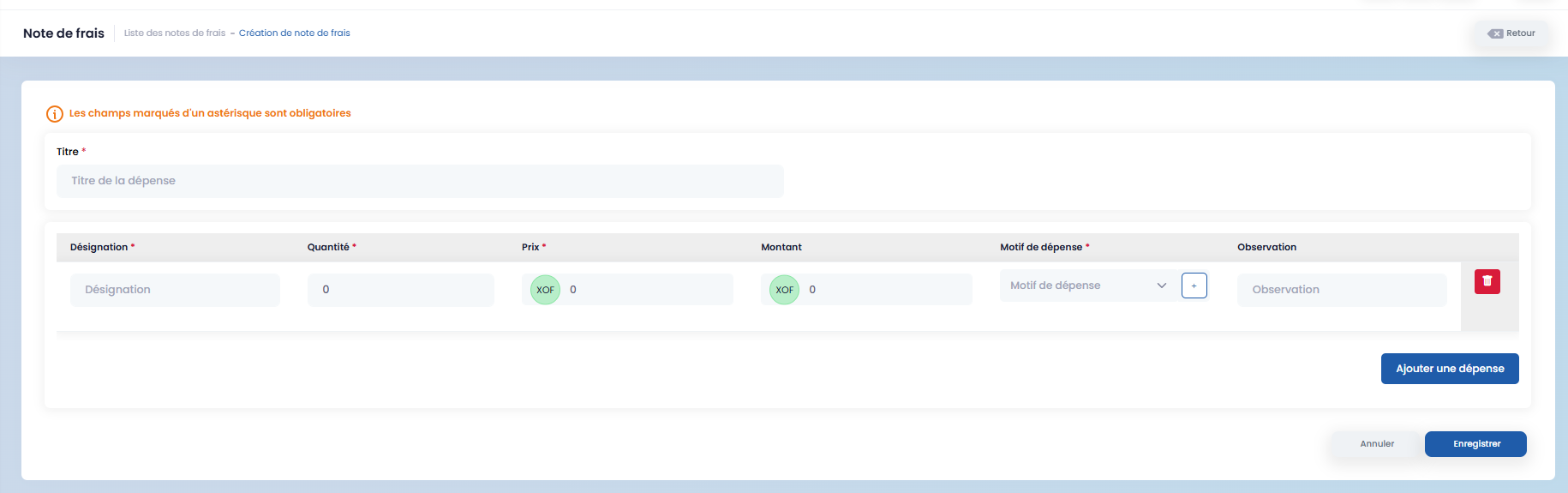
To create an expense report:
- click on "Create an expense report"

-
fill in the form fields,
-
add one or more expenses using the "Add an expense" button,
-
save.
After creation:
-
a draft is generated,
-
you can preview the expense report as a PDF, download it, or print it,
-
modify the report if necessary using "Edit",
-
send the report using "Send".
Once sent, the report status changes to pending validation, where it can be either validated or rejected.
Purchase Requisitions (Headquarters and Project)
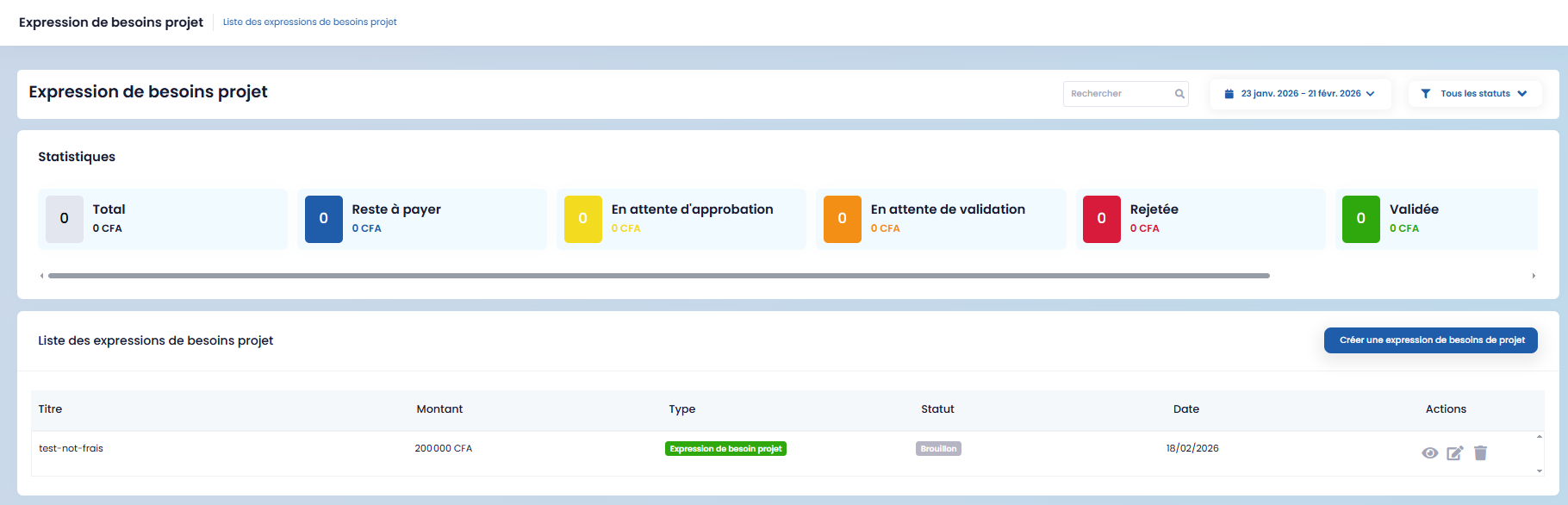
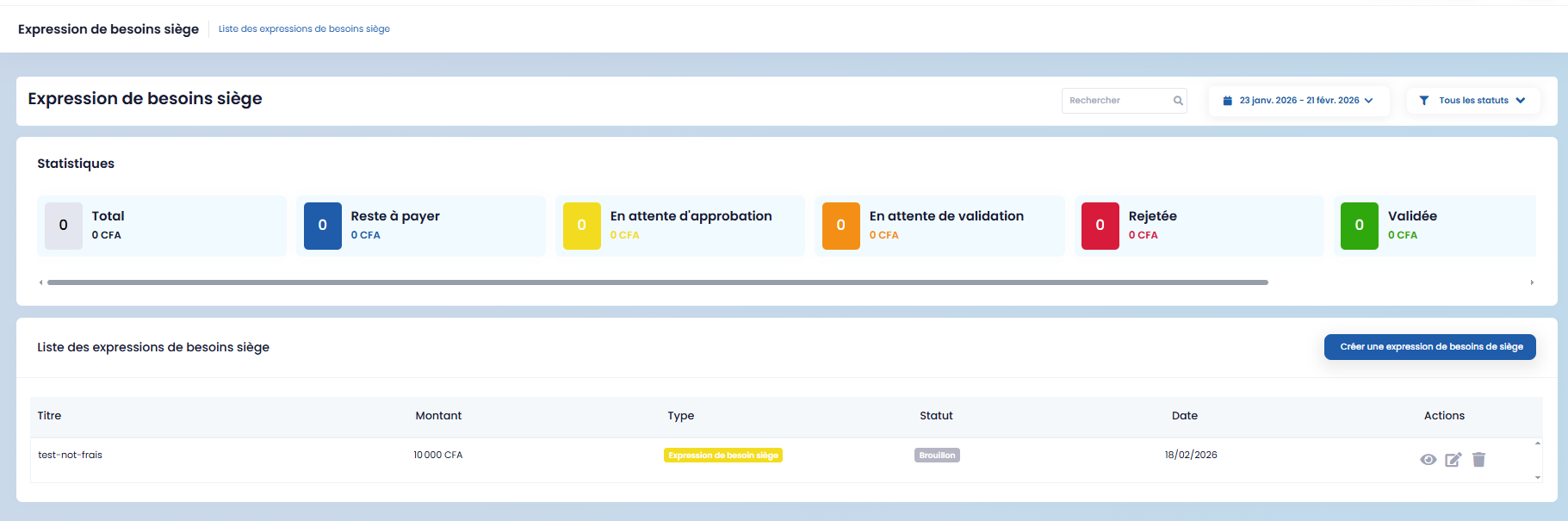
Headquarters purchase requisitions and Project purchase requisitions follow a similar process to expense reports: creation via form, status tracking, and validation.
Purchase Orders
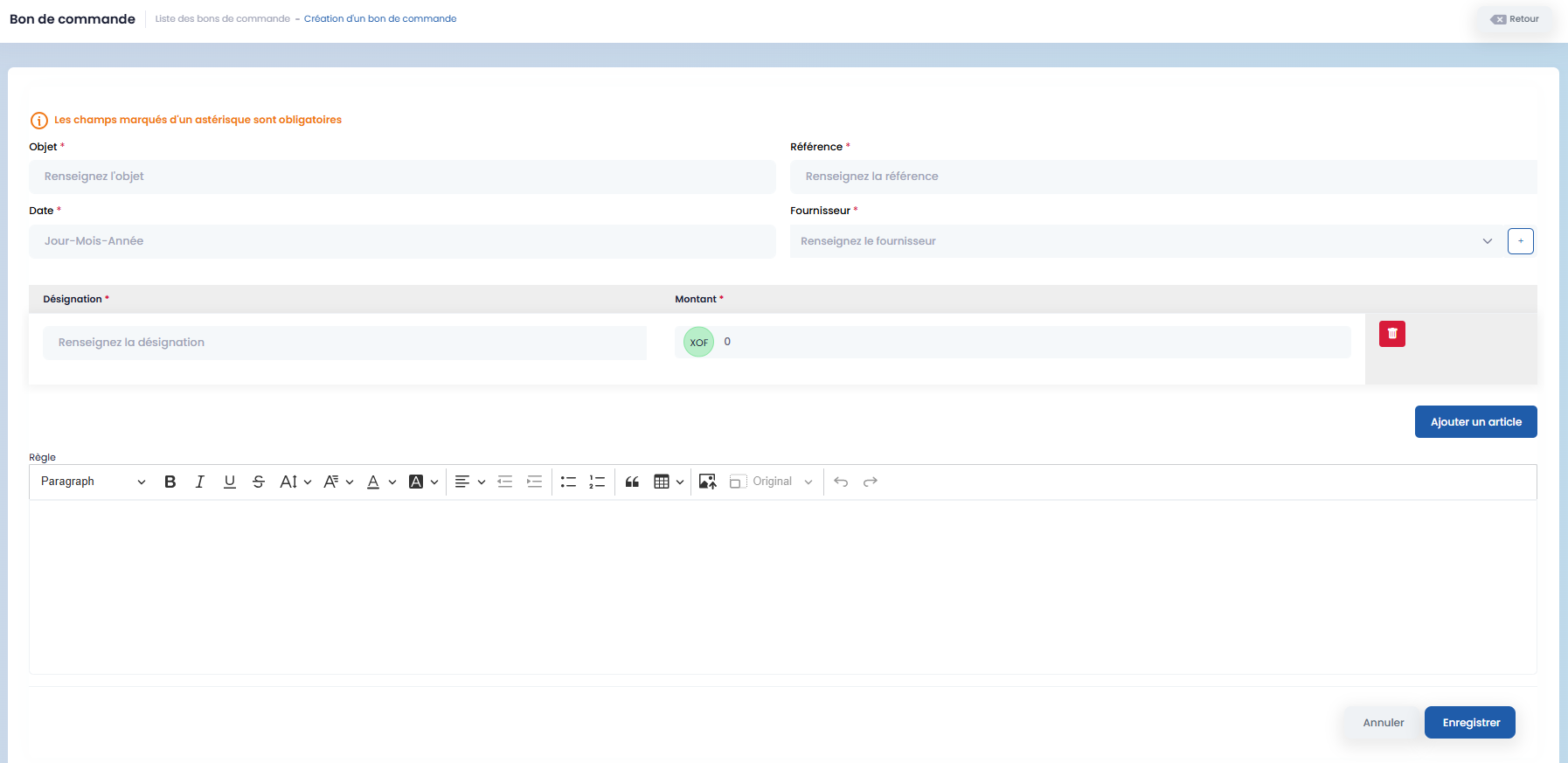
To create a Purchase Order, click on "Create a purchase order".
-
Fill in the required information,
-
add the necessary items,
-
then save using the "Save" button.