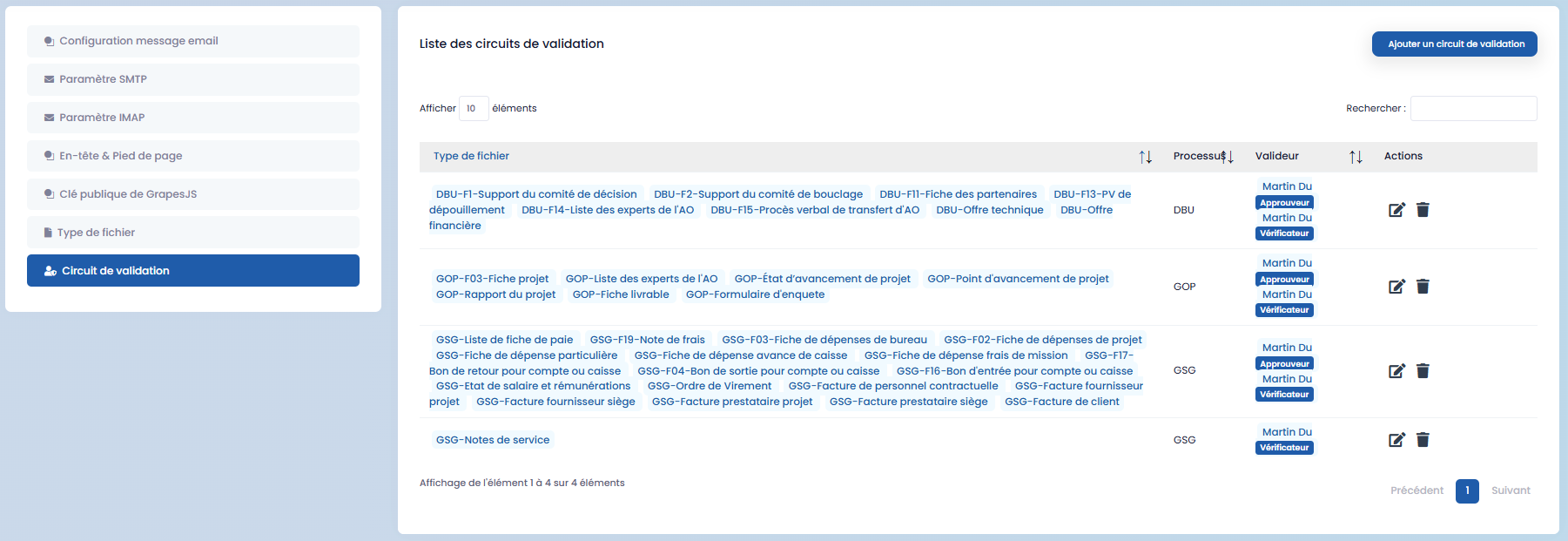
General Settings
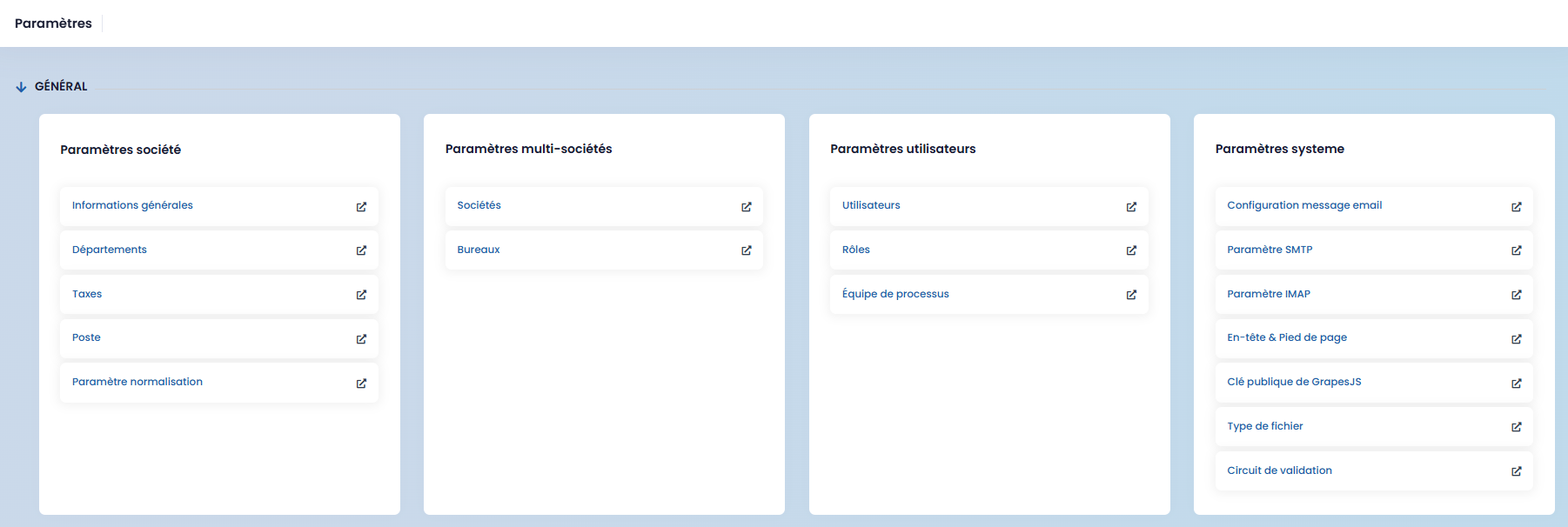
Company Settings
This section groups all information related to your company.
General Information
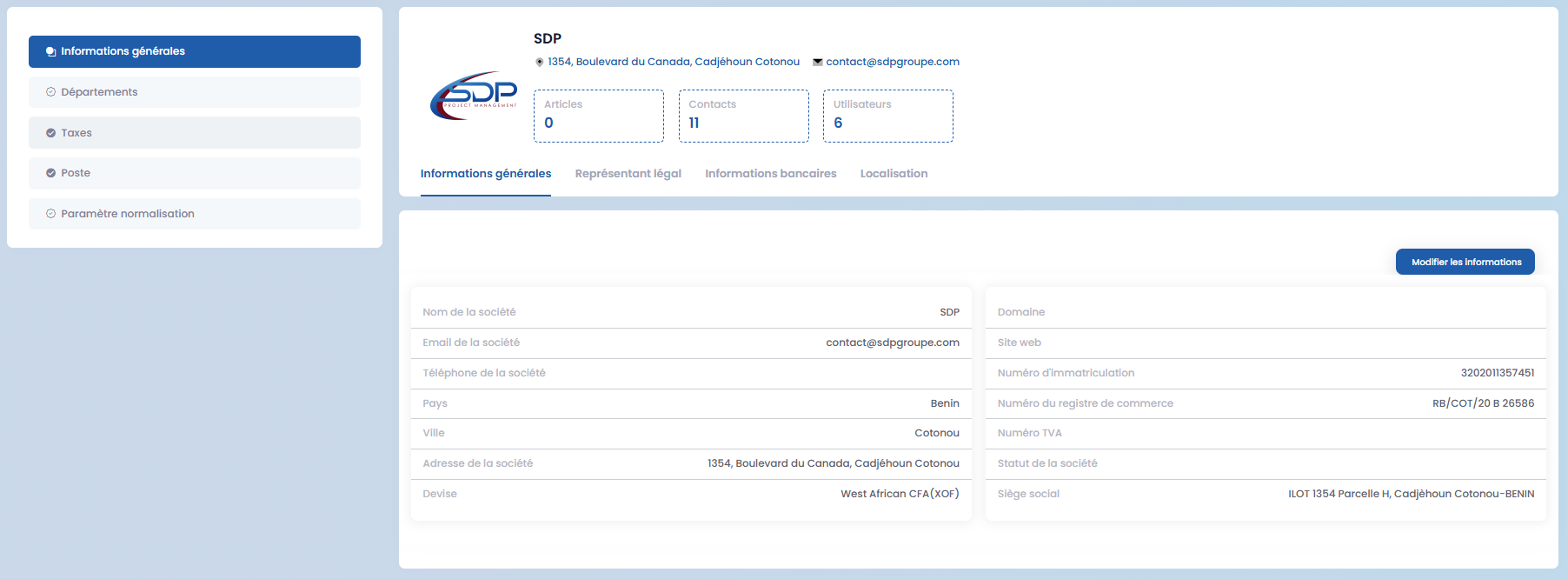
You can modify company details using the "Edit information" button. This includes:
- general information,
- legal representative,
- banking information,
- location.
To add banking details, click on "Add banking information", fill in the form, and save.
Departments
This section allows you to manage company departments.

Click on "New department", fill in the form, and save.
Taxes
You can configure the taxes used within the application.
Click on "New tax", fill in the form, and save.

The action icons allow you to edit or delete a tax.
Job Positions
This section allows you to define the job titles/positions held by employees.
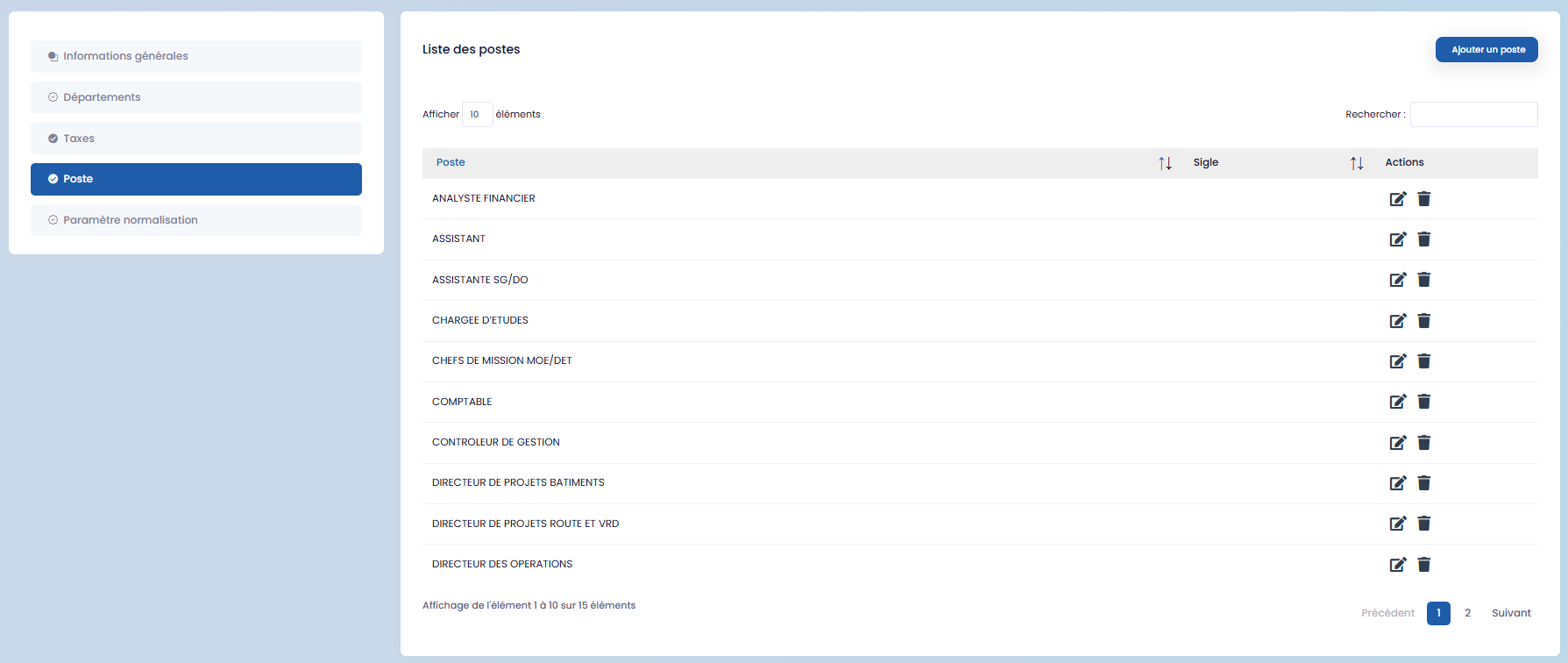
Click on "Add a position", fill in the form, and save.
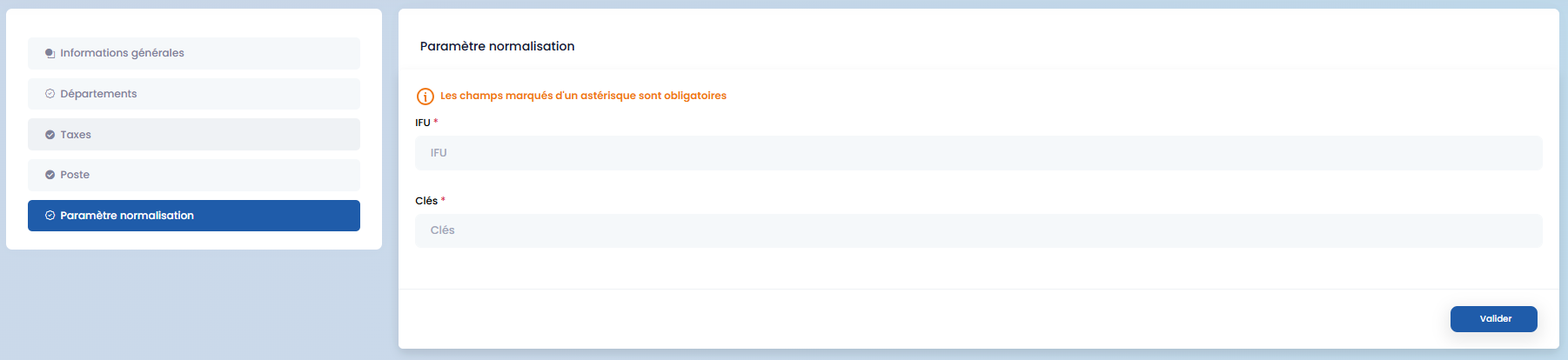
Standardization Settings
Enter the IFU number (Tax Identification Number) and the key, then validate.
Multi-Company Settings
Companies
This section allows you to register multiple companies.

Click on "New company", complete the form, and save.
Offices
You can associate offices with your companies.

Click on "New office", fill in the form, and save.
After creation, the action icon allows you to associate employees with the office. Click on "New member", fill in the form, and save.
User Settings
Users
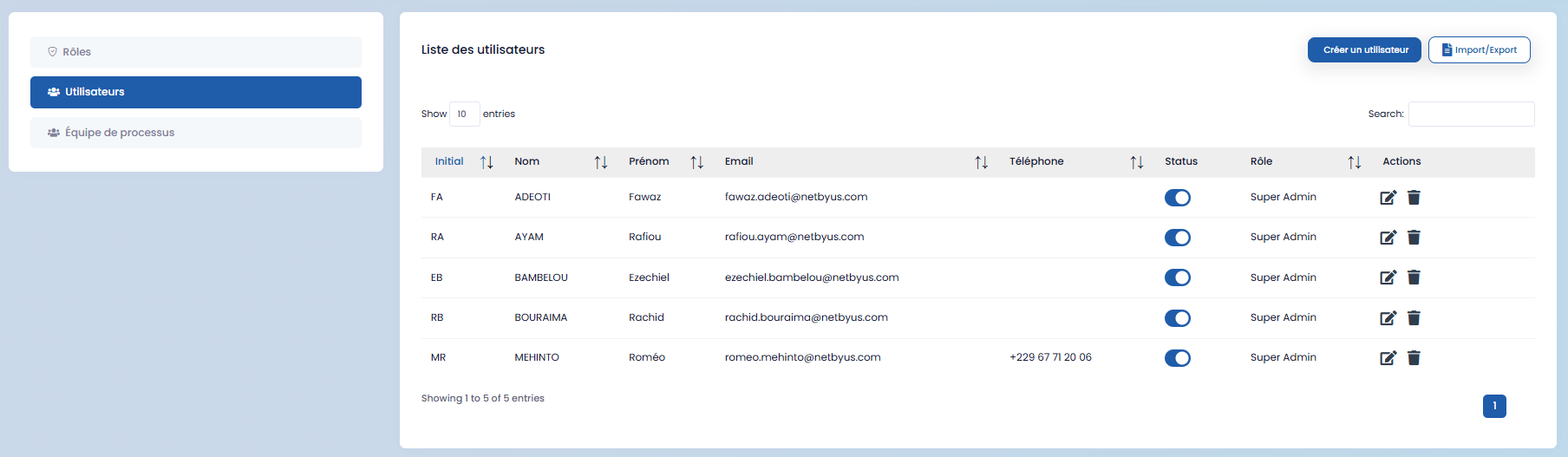
This section allows you to manage platform users.
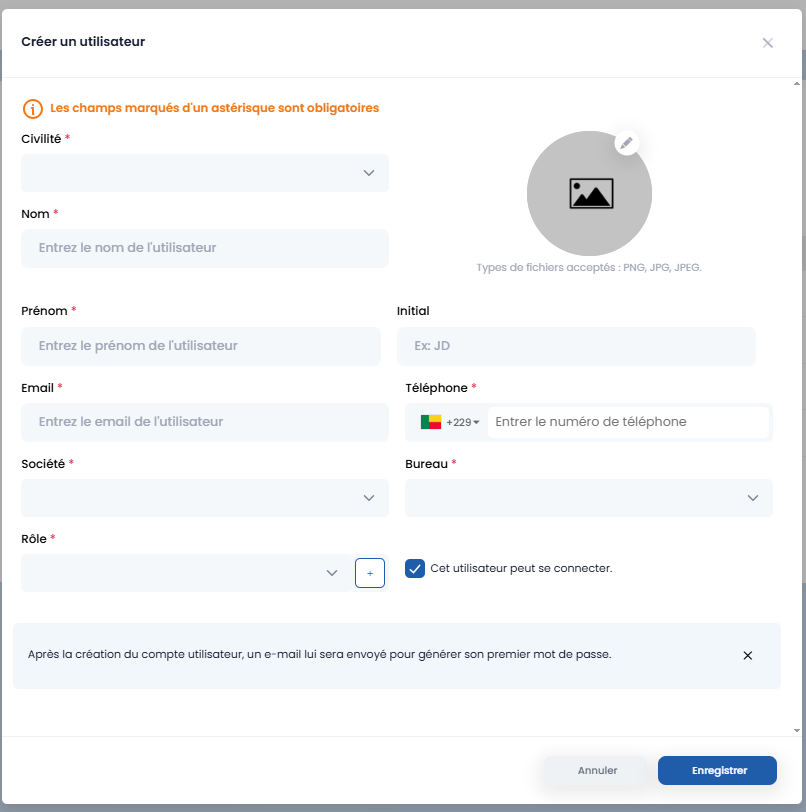
- Click on "Create a user"
- Fill in the form, and save
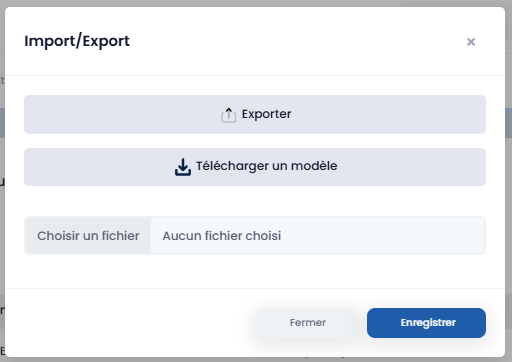
You can also import or export users.
- Import
Click on "Import / Export", then on "Download a template". Fill in the downloaded file, select it via "Choose a file", then save.
- Export
Click on "Export" to download the user list in Excel format.
Process Teams
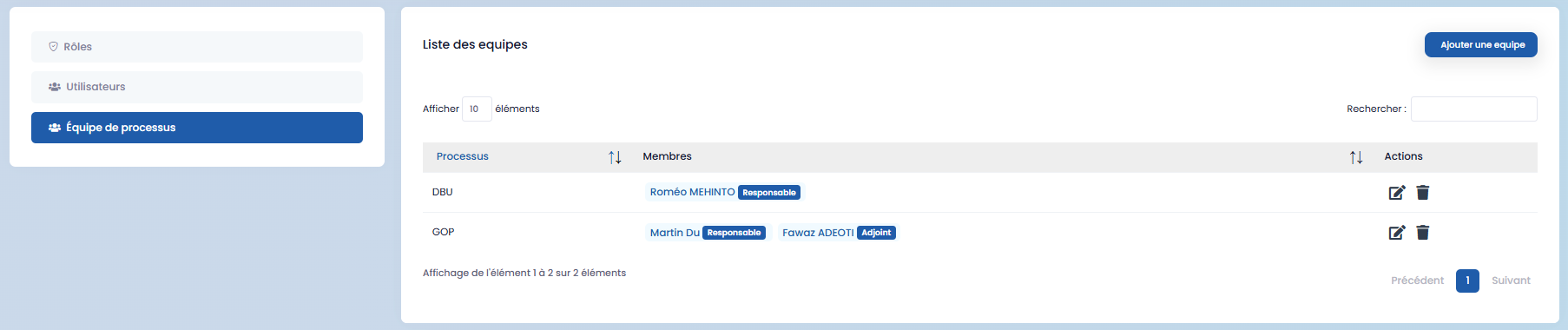
Click on "Add a team", fill in the form, and save.
To add multiple members, use the "Add a member" button.
Roles
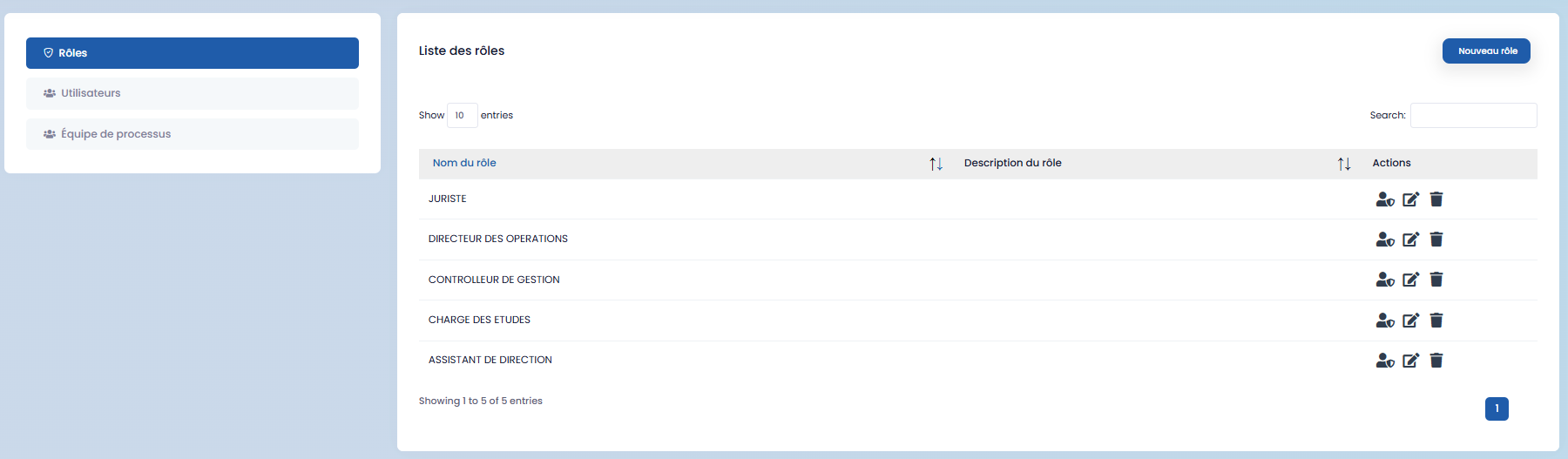
This section allows you to create roles to be assigned to users. Click on "New role", complete the form, and save.
System Settings
Email Message Configuration
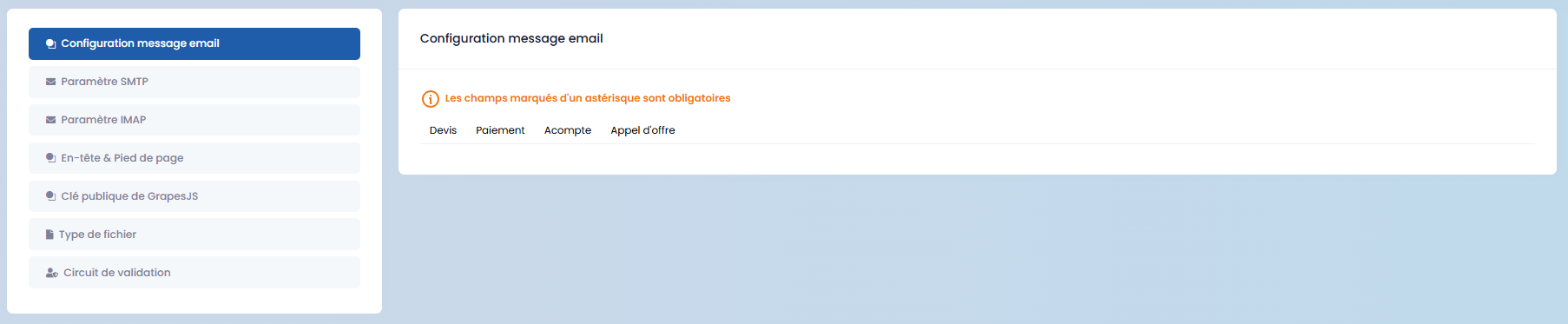
You can configure messages sent via email, including:
- quote sending and reminders,
- payment notifications and transfer orders,
- deposit invoices and related reminders,
- Tender (AO) transfers,
- customer surveys,
- project document sending,
- project manager assignments.
For each message, edit the content, add elements if necessary via "Add elements to content", and save.
SMTP Settings
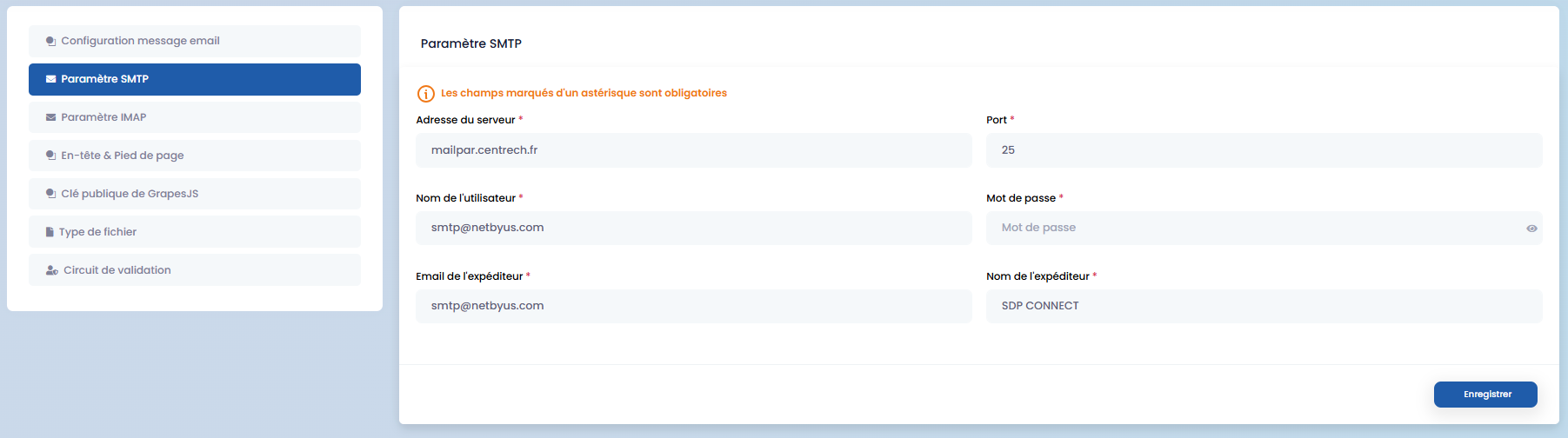
Enter your SMTP details and save.
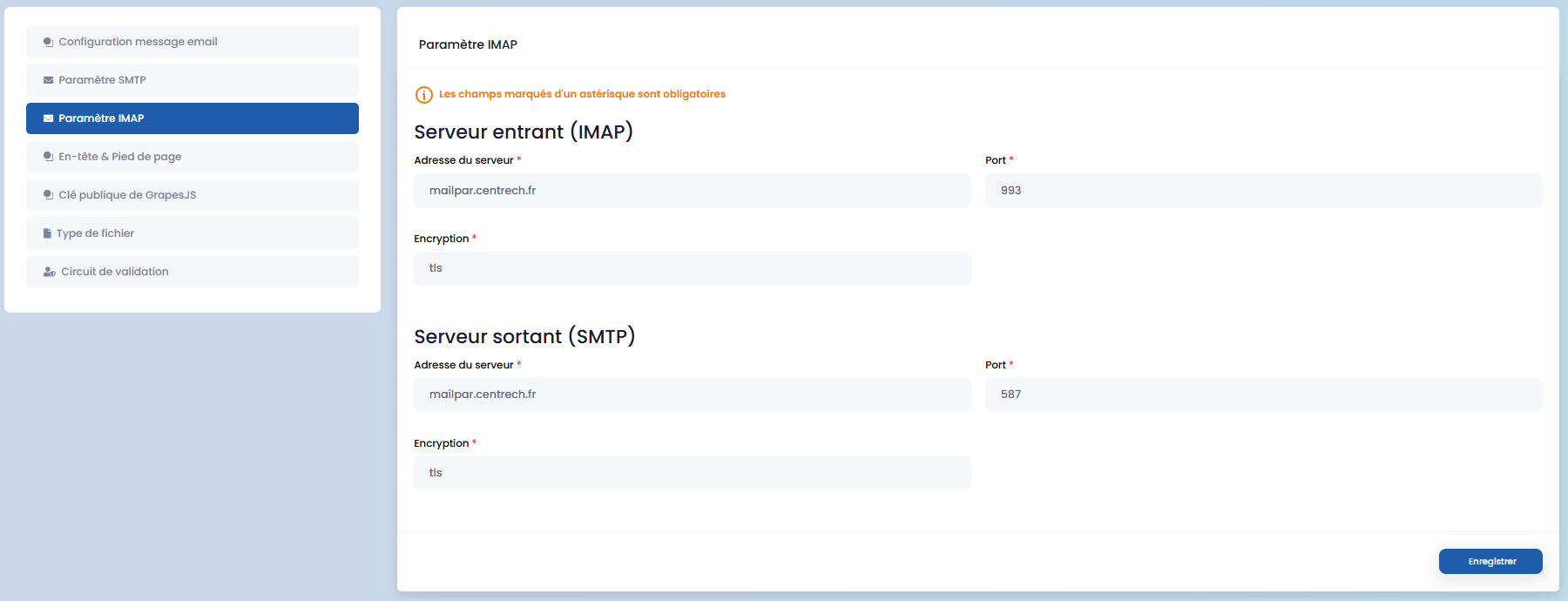
IMAP Settings
Enter your IMAP details and save.
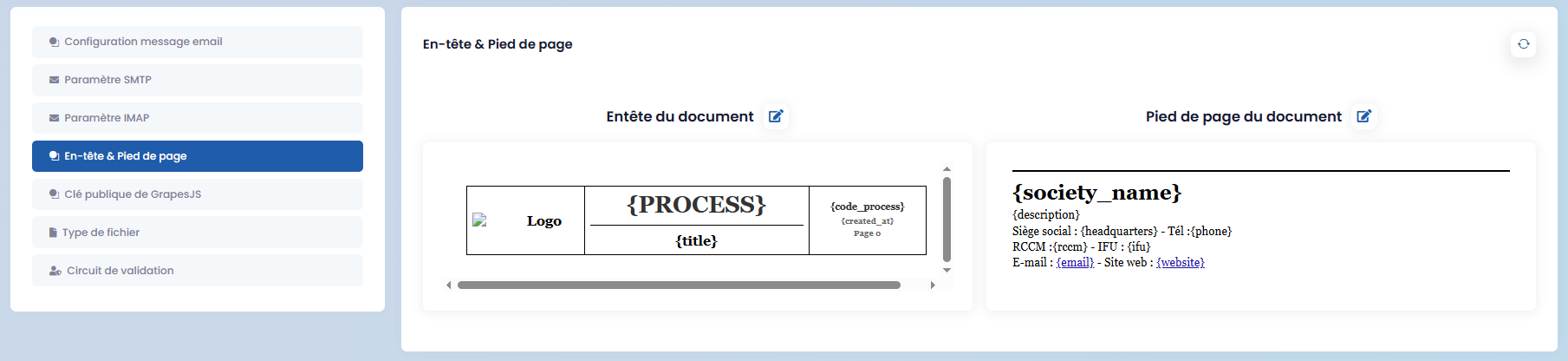
Header and Footer
Configure document headers and footers according to your needs, then save.
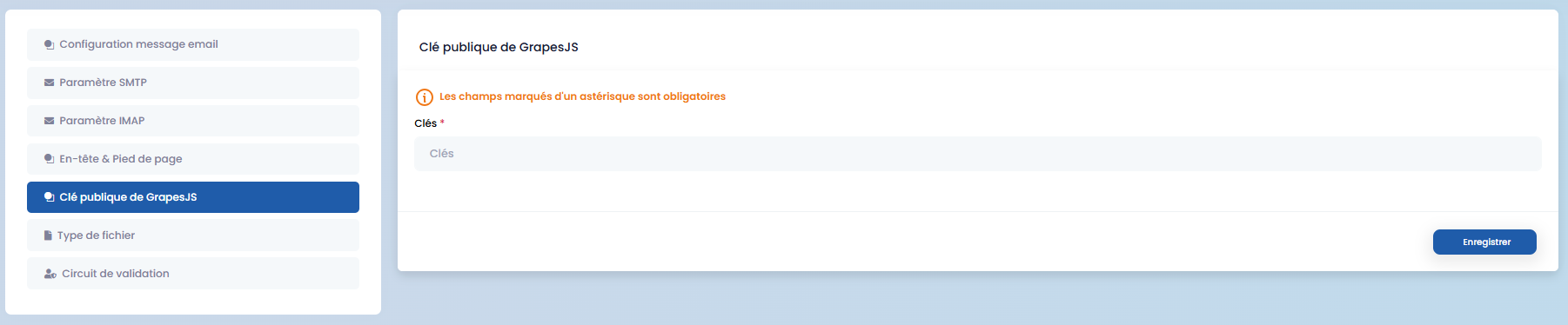
GrapesJS Public Key
Enter the public key and save.
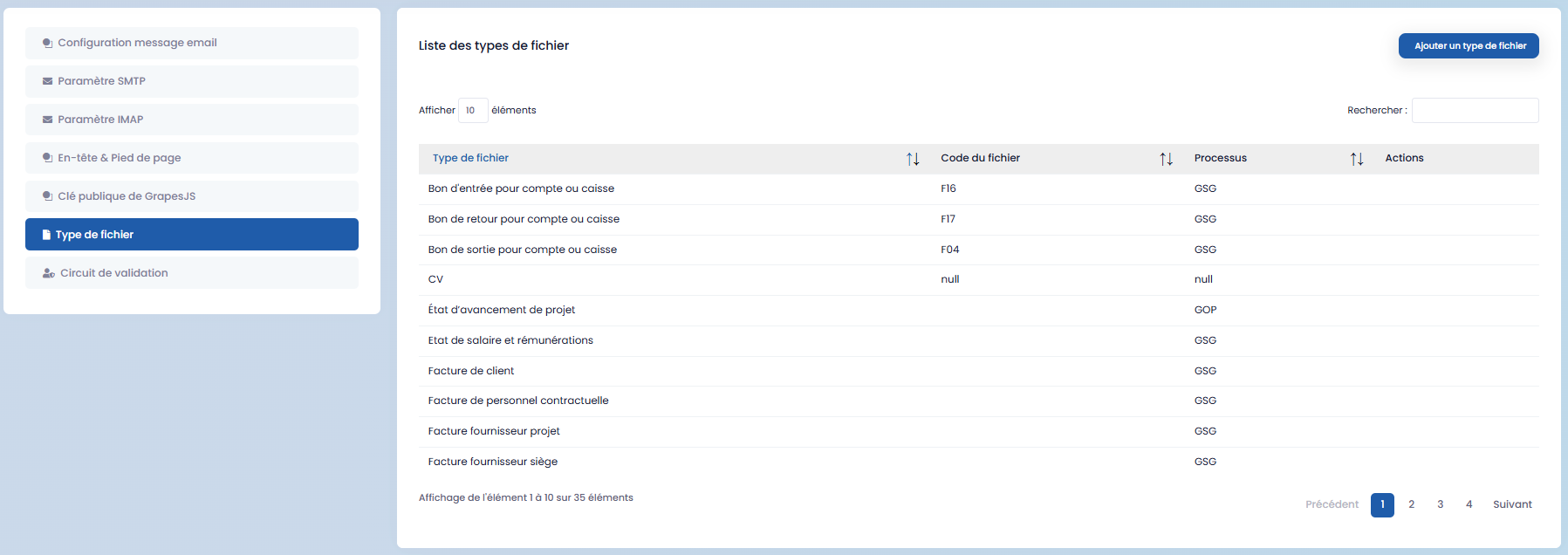
File Types
Click on "Add a file type", fill in the form, and save.
Validation Workflows (Circuits)
Click on "Add a validation circuit", complete the form, and save.